SchoolCheck · Checker guide
Checking with SchoolCheck
Everything a checker needs for the first day: sign in, find your school, check each door, and report anything that isn’t right. It all happens on your phone while you walk the building.
All you need is your phone and your work email.
Step 1
Sign in
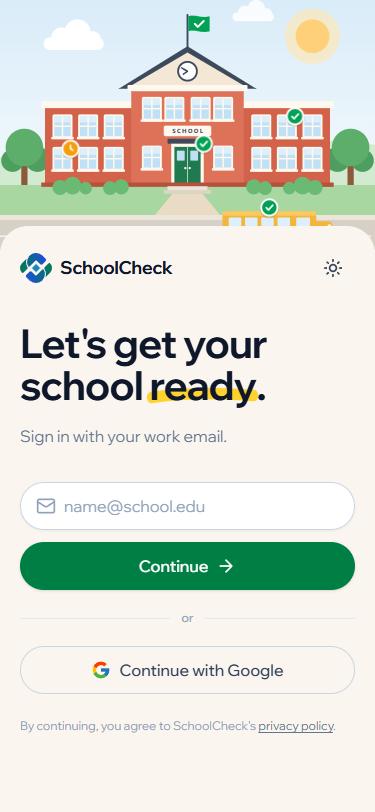
- Open schoolcheck.app on your phone.
- Type your work email and tap Continue.
- If your district uses Google, tap Continue with Google instead.
Tip: Add SchoolCheck to your home screen so it opens like an app. In Safari, tap Share, then Add to Home Screen.
Step 2
Pick what you’re checking
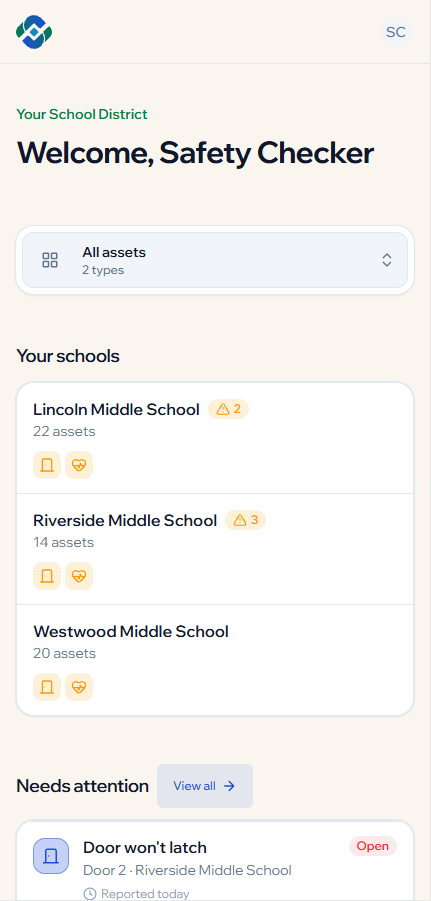
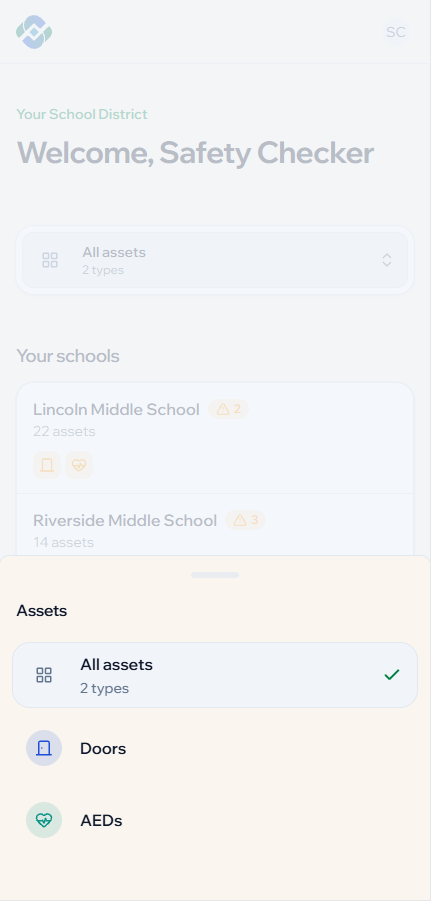
If you check more than one kind of asset, such as doors and AEDs, a picker sits at the top of the page. It starts on All assets.
- Tap the picker.
- Choose the kind of asset you’re checking today, for example Doors.
Only check one kind of asset? You won’t see the picker. Go straight to step 3. The rest of this guide uses doors as the example.
Step 3
Find your school
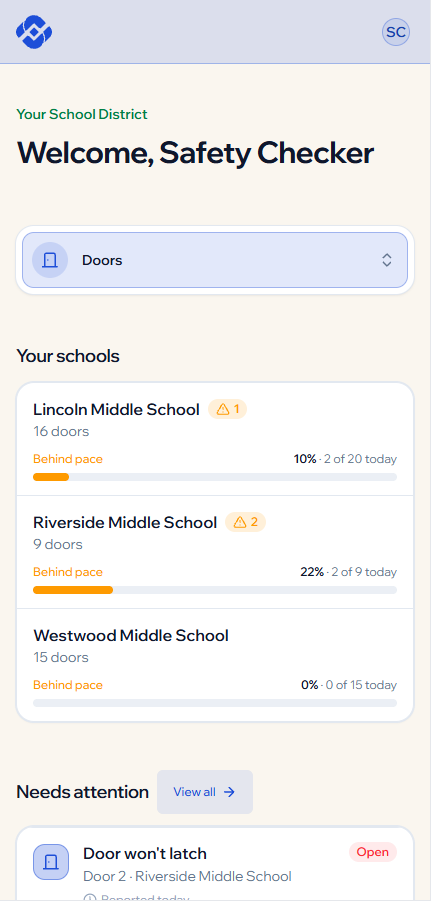
Your schools lists only the schools you’re assigned to.
Each school shows how many doors it has and how many checks are done today. A small warning triangle with a number means that school has a door that needs attention.
- Tap the school you’re walking today.
Step 4
Start checking
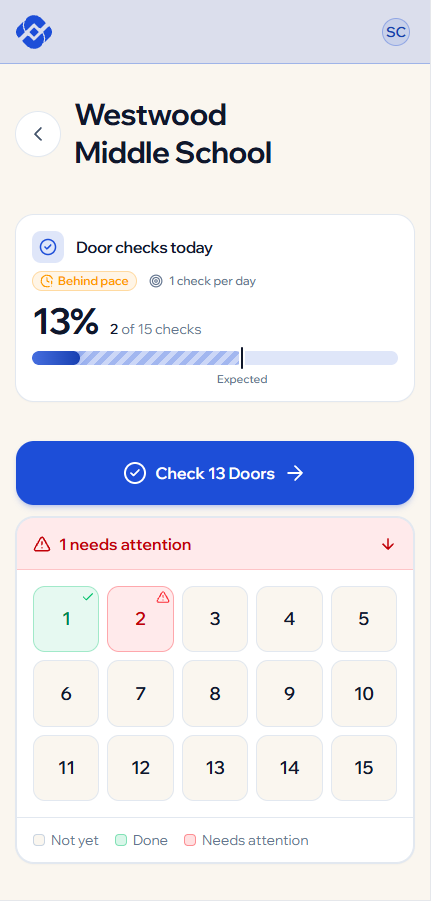
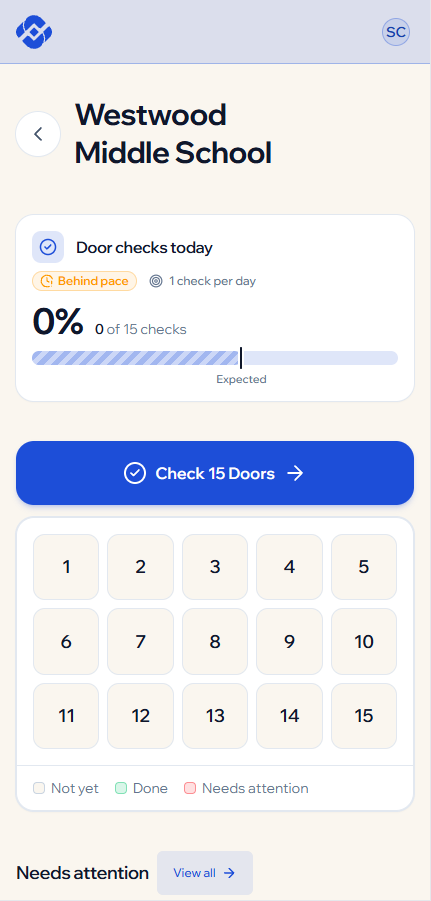
The school page shows today’s progress at the top and every door as a tile below.
- Not yet
- Done
- Needs attention
- Tap the big blue Check 15 Doors button.
- SchoolCheck walks you through them one at a time, in order.
Step 5
Check each door
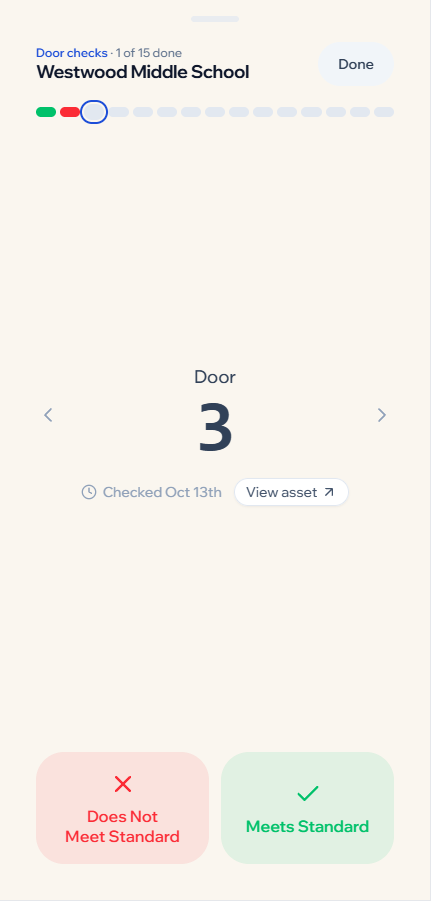
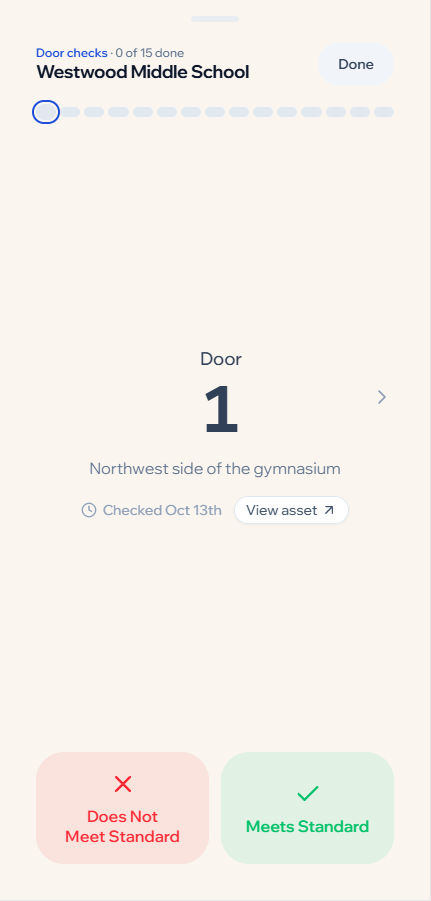
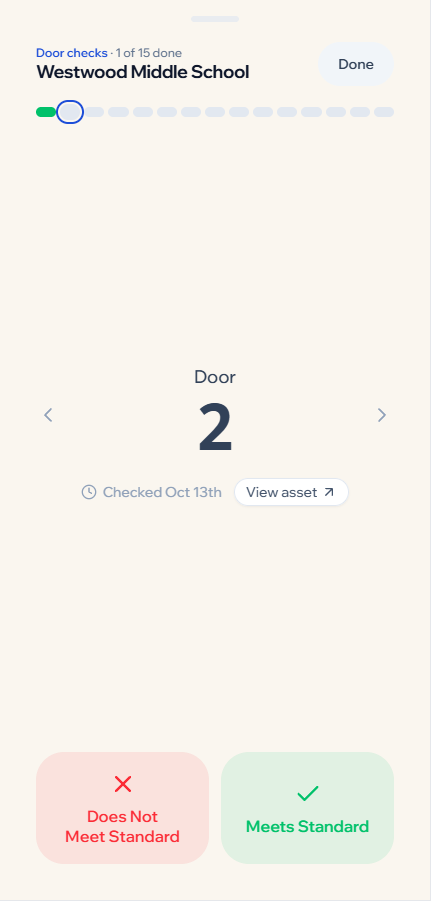
Stand at the door shown on screen and look it over. Then tap one of the two big buttons at the bottom:
- Meets Standard if everything is right. SchoolCheck saves it and moves to the next door.
- Does Not Meet Standard if something is wrong. A short form opens (step 6).
The bar across the top tracks your round. Green is a door that passed, red is a door with a finding, and the outlined one is where you are now.
Need to skip a door? Use the arrows beside the door name. Tap Done at the top to stop anytime. Every check you’ve made is already saved.
Step 6
Report what’s wrong
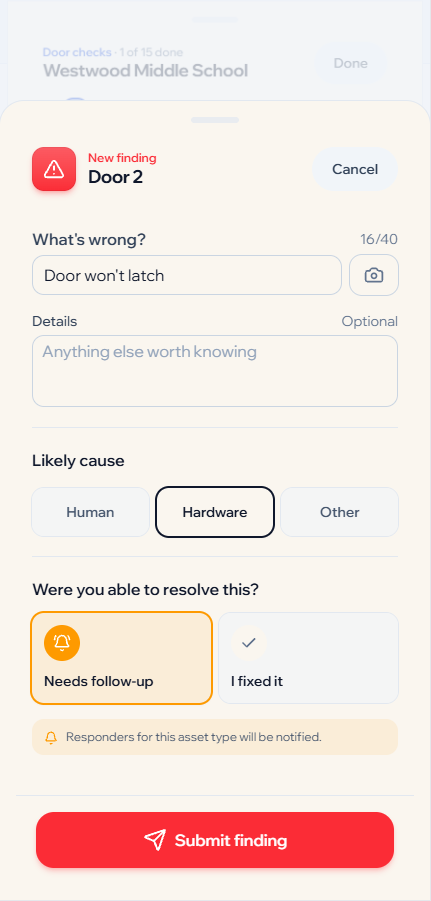
Tapping Does Not Meet Standard opens a new finding for that door. A finding is the permanent, time-stamped record of the problem.
- What’s wrong?
- A few words, up to 40 characters. For example: “Door won’t latch”. Tap the camera to add a photo.
- Details
- Optional. Anything else the person fixing it should know.
- Likely cause
- Human, Hardware or Other. Pick your best guess.
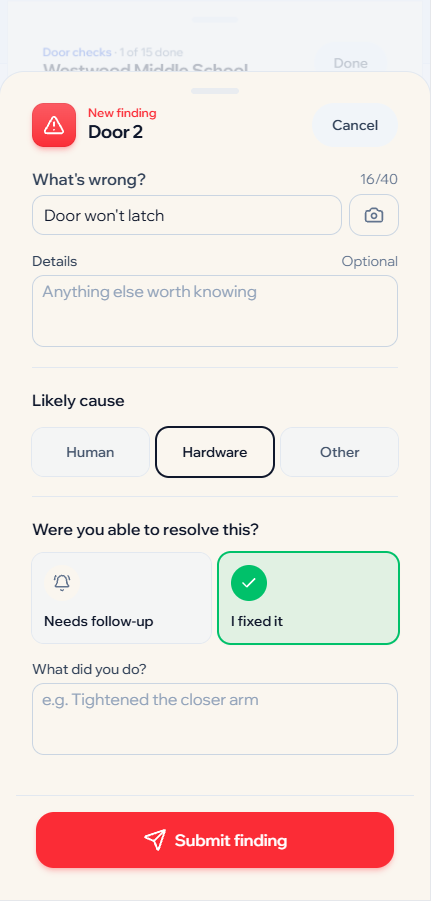
- Resolved?
- Needs follow-up tells the responders for doors so they can fix it. I fixed it asks what you did, for example “Tightened the closer arm”.
- Tap Submit finding.
Tapped the wrong button? Tap Cancel at the top. Nothing is saved.
Step 7
Keep going
After you submit, SchoolCheck moves straight to the next door. The bar shows red where the finding was filed.
Back on the school page, that door’s tile turns red and a needs attention banner appears at the top. It stays red until the finding is resolved, so the next checker knows too.